
What is a verification task?
In revealit’s video world a verification task refers to data that has been checked and scrutinised by human beings one frame at a time.
Why would we want to do that?
Well, at revealit we have built an automated AI product engine called the Velocity Product Engine that analyzes every single frame of video to automagically find products. Whilst thats fantastic how do we actually know that the Velocity engine is working and finding every product? How do we know whether the latest round of changes our engineers have has made the model better or worse than before?
The answer is really quite simple, we conduct a first hand inspection of every single frame of video to see if the product exists or not and then see how our engine did compared to humans.
Now what you should be thinking is “Whoa! at 30 frames a second… 20 videos… 10 mins each… thats a lot of frames to look at.” and you’d be right. Thats where you, the crowd, comes in as our good old fashioned analog fact-checkers. You make sure that the product is where our AI says it is by checking what we call ‘batches’ or small collections of video frames.
By completing verification tasks you will be achieving two things:
- You will be helping us track and train the efficiency of our product engine leading to vital research and development that will help us deliver you; the user a better experience.
- Most importantly you get paid!
All of our curators earn a digital currency for every batch completed.
How to start a verification task
To start a verification task first navigate to the revealit crowd curator at curator.revealit.tv.
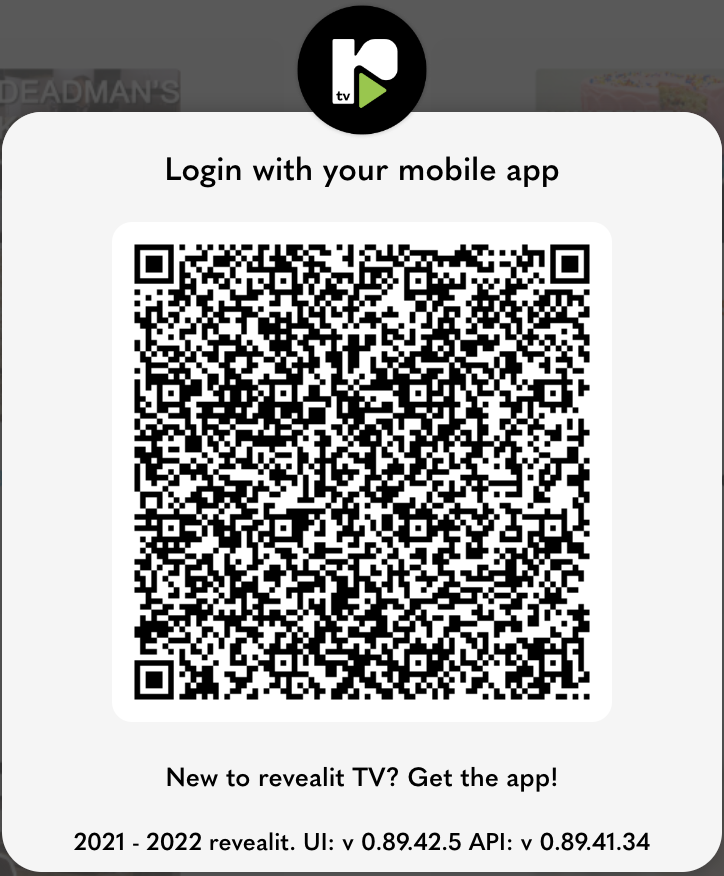
You’ll see a QR code presented in the middle of your screen. If you don’t have a revealit TV account see this article here to learn how to sign up. If you have an account already simply point your phone camera at the code, scan it, and you’ll be logged in instantly.
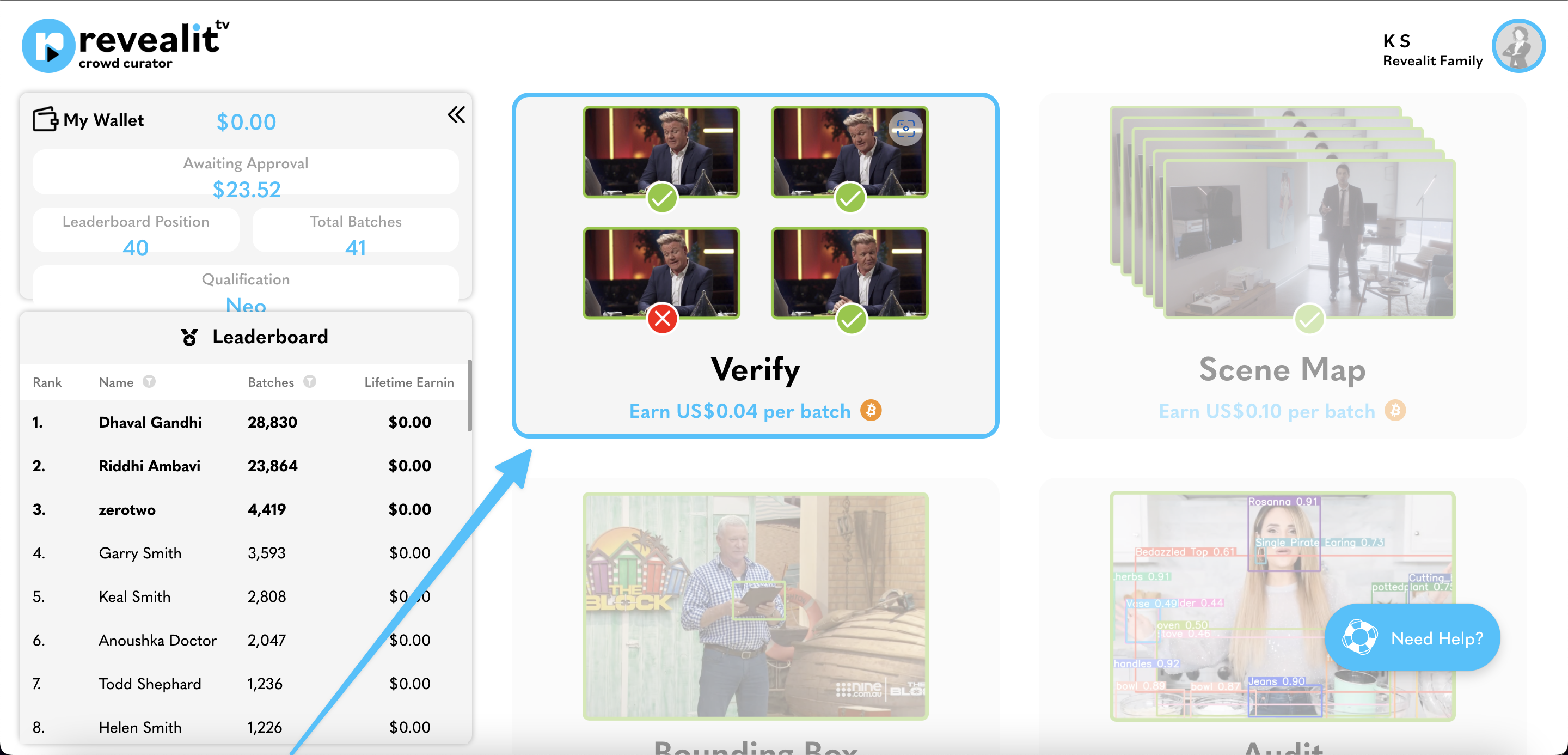
After logging in you will arrive at the curator homepage. In the centre of the screen you can see the four types of curation task: Verify, Scene Map, Bounding Boxes and Audit. Simply click the top left bubble labelled verify.
This will take you to the videos homepage. This page shows the videos for verification training. You can tell which videos have products available by looking at the burn down counter just right of the video title. Choose a video that has products left to be trained by clicking on that video’s title.

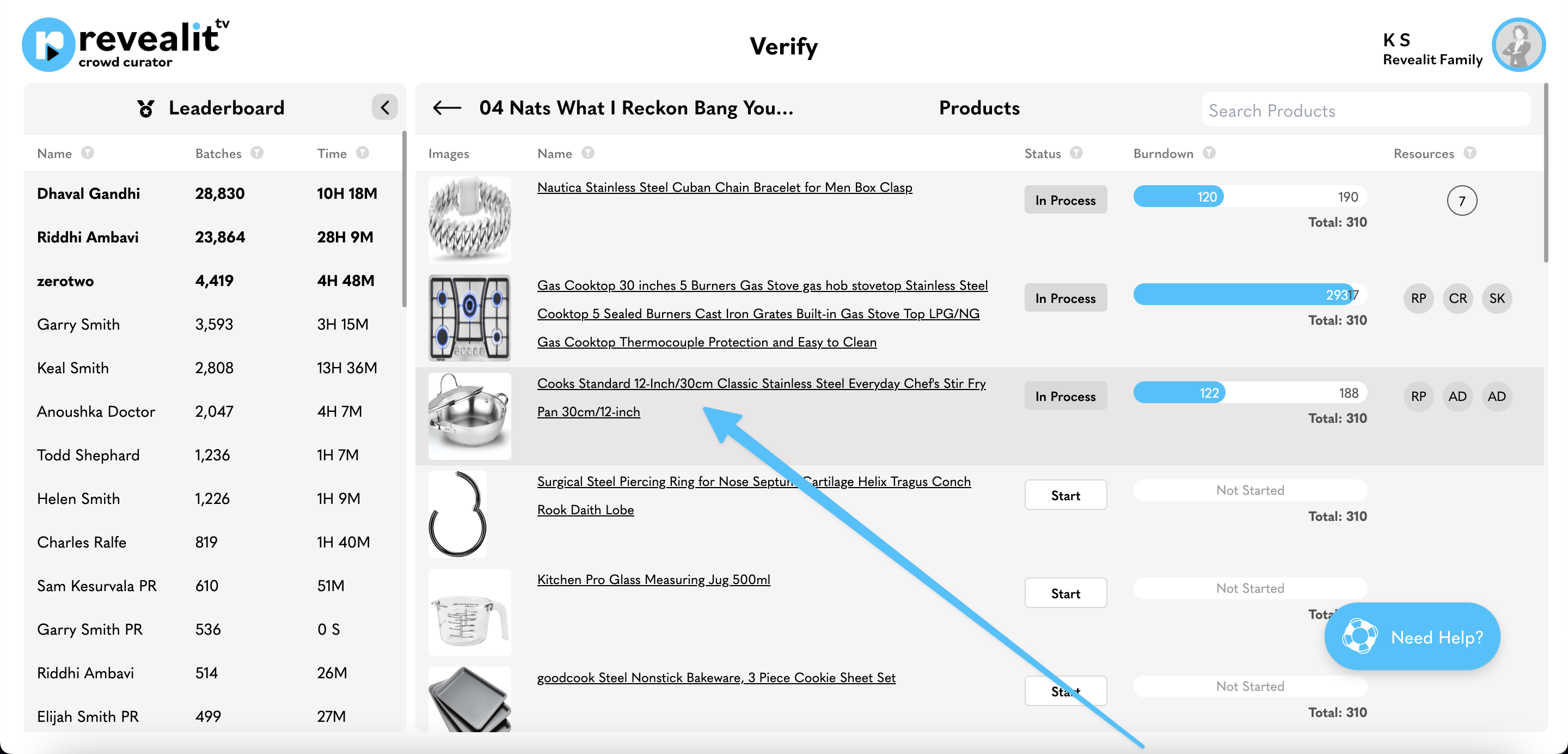
This will take you to the products homepage for that video. To start curating a product simply click on the product name to initiate a verification task.
Completing a Verification Task
Now you’re in the task screen you will see the revealit curator is asking you a straightforward but very important question “Do you see all or part of the product below?”
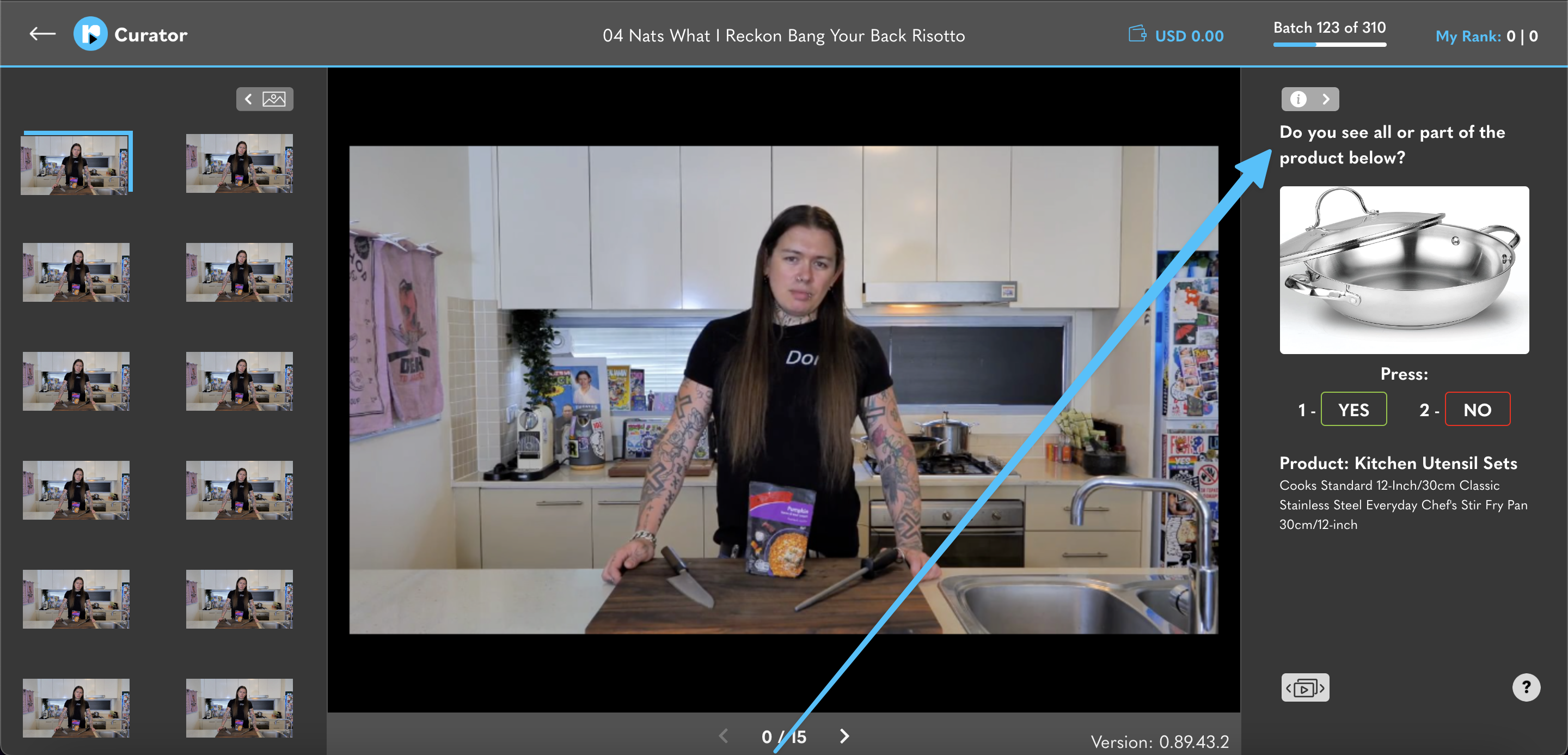
Looking for the product in the centre frame only you can indicate your answer by pressing 1 for YES or 2 for NO on your keyboard. Alternatively you can click the green YES or red NO buttons located below the product image. As you indicate your answer using your mouse or keyboard you will notice the frames start to burn down in the batch pane on the left hand side.
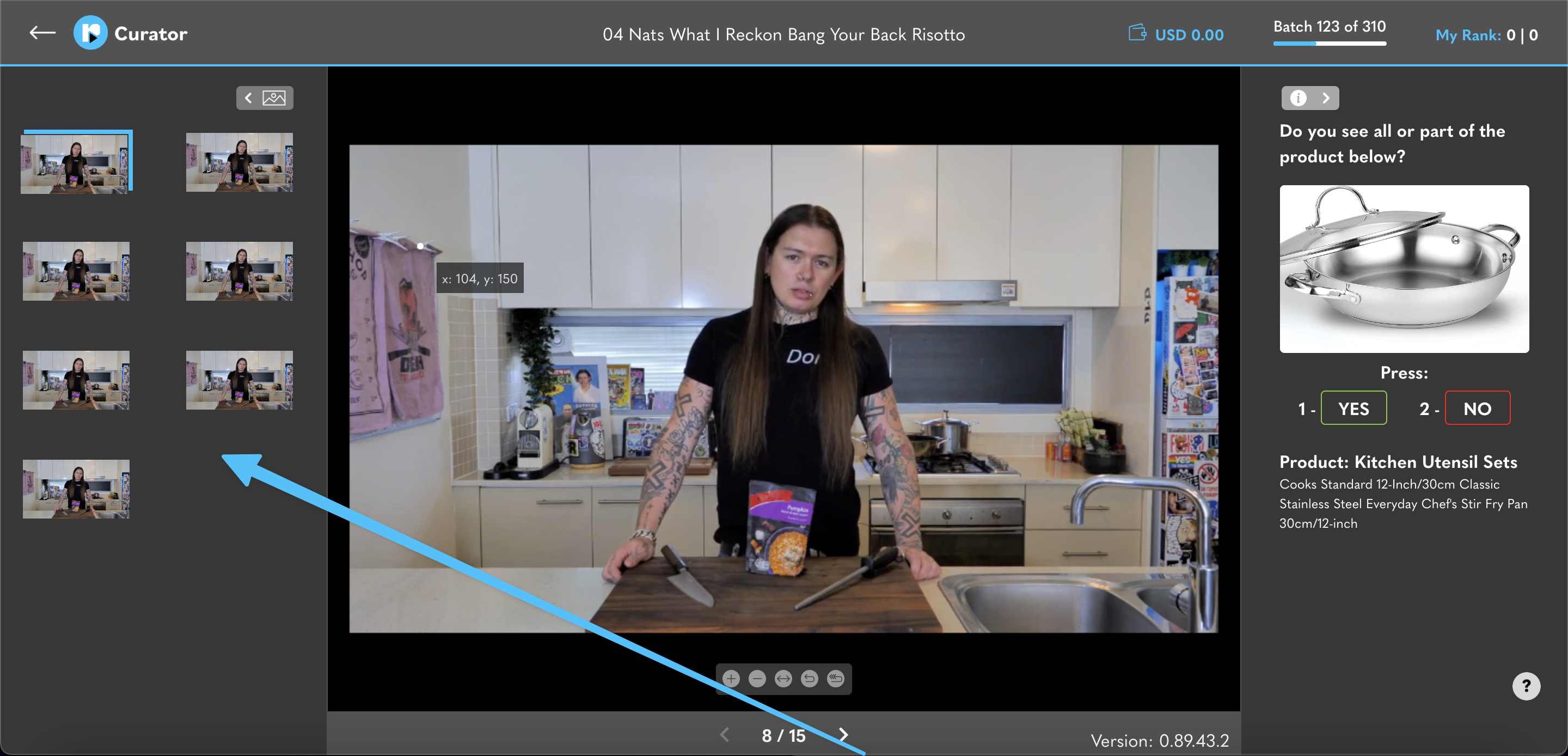
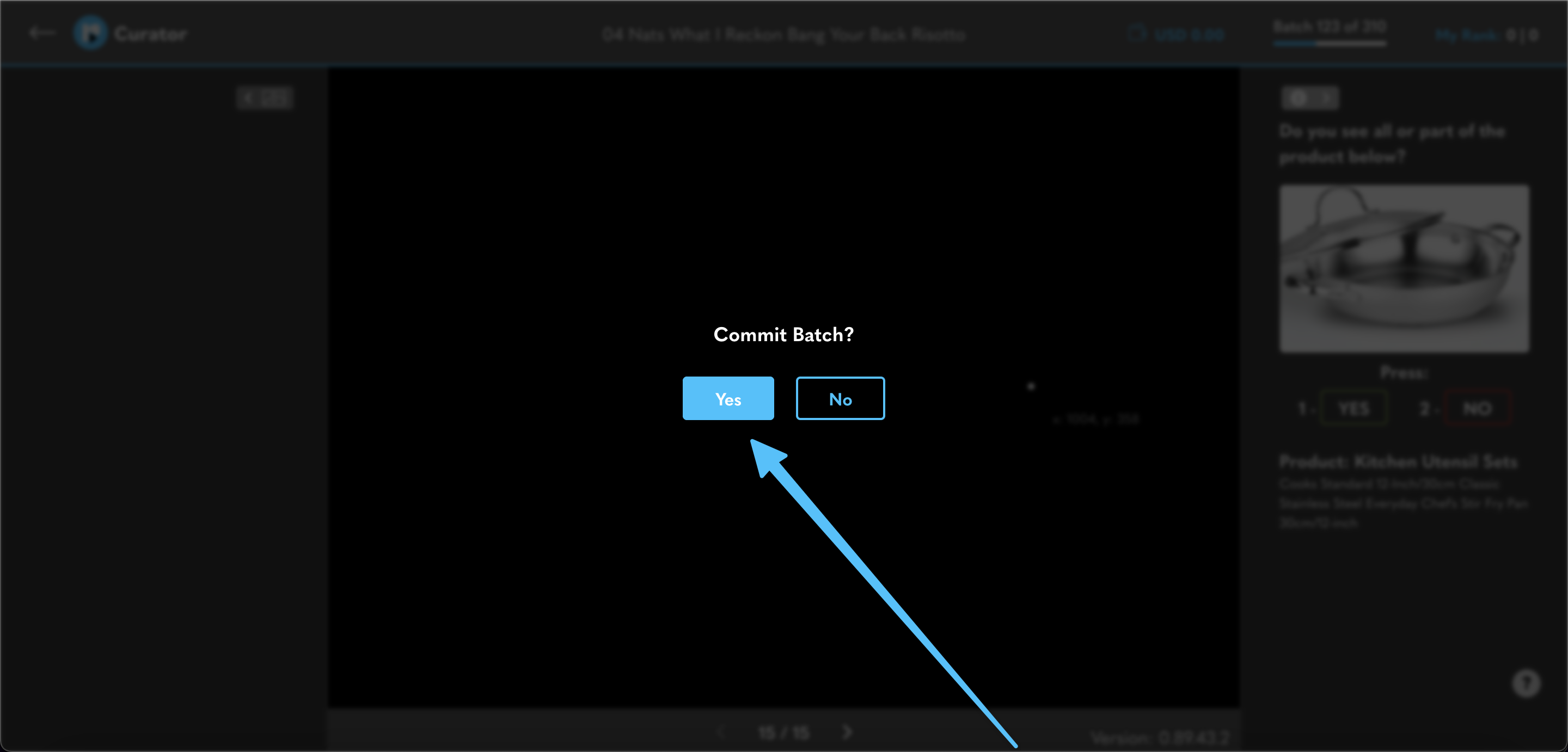
Once all 15 frames have been assigned an answer you will receive a prompt to commit the batch. Click yes or press ENTER on your keyboard to send the batch off for approval.
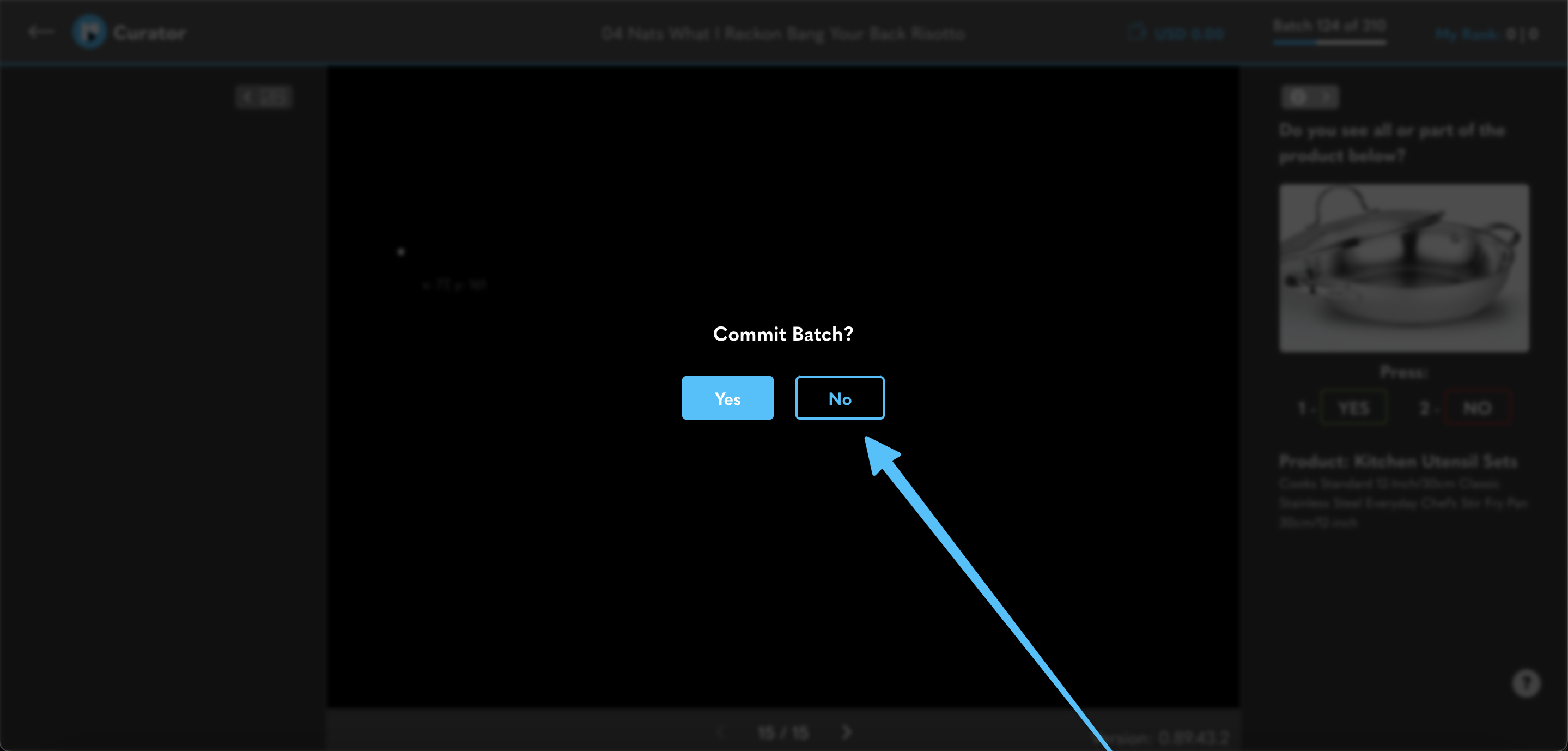
If you need to double check and make sure you answered correctly simply click no or press the escape button on your keyboard.
From here you can use the undo feature to check your answers frame by frame. If you don’t know how to undo a batch check out this article that explains the ins and outs: How to Undo a Batch
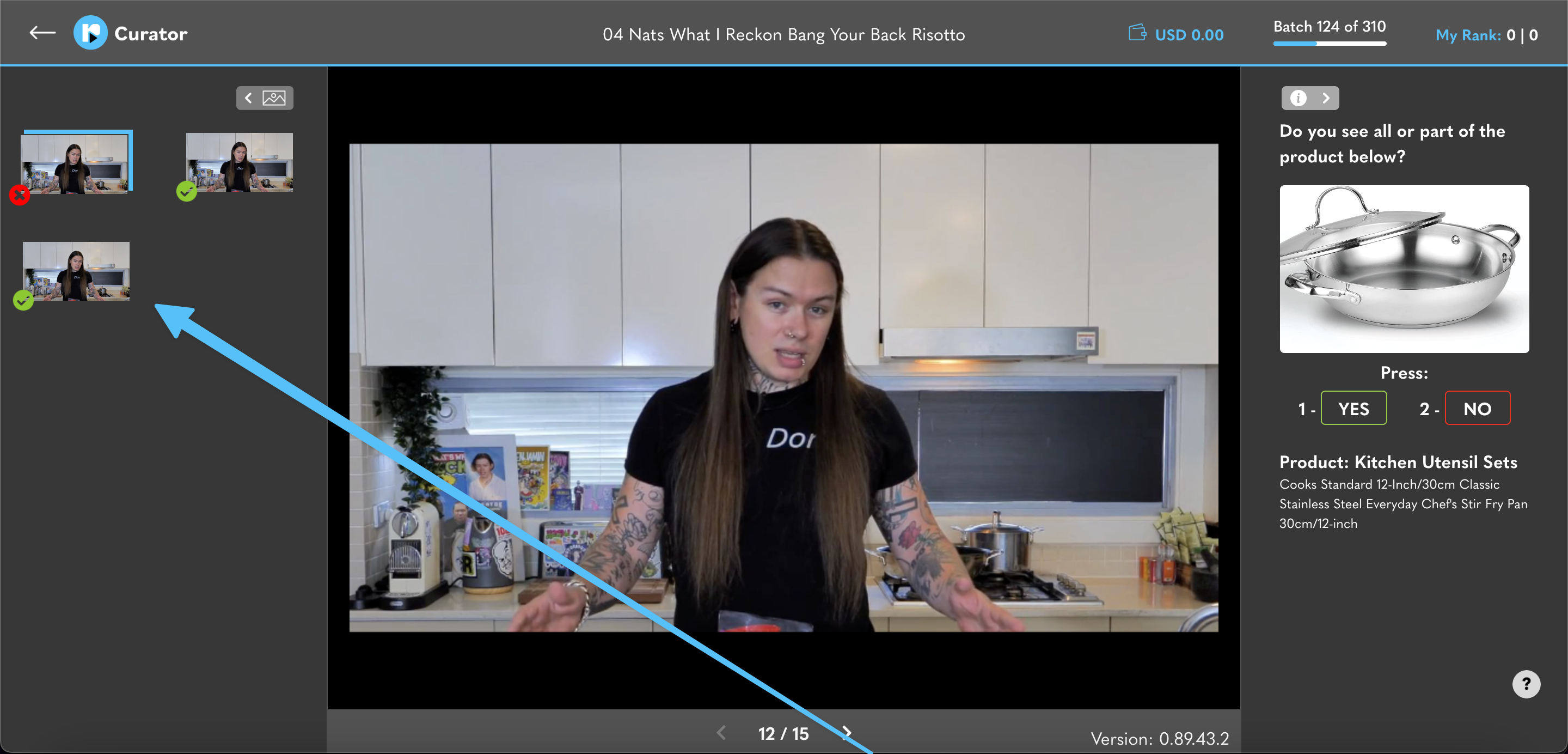
To re-assign the correct answer simply enter either 1 or 2 on your keyboard to process the frame again. Once you commit a batch you can choose to continue completing batches for that product or switch it up, click the back arrow, and choose a different product. You can hop in and out the task screen at any time as only batches you commit are saved. You can complete as little or as many batches as your heart desires.
 revealit TV Blog