
Why might you want to undo?
There are a variety of reasons why a curator may want to undo the batch they are working on. The main reason is to make sure the frames have been assigned correctly and to amend any mistakes. Making frequent mistakes could result in your batches not being approved. Let’s assume your mind wanders and you make a mistake half way through a batch by using the undo shortcut each frame will reappear on the left hand side and you will be able to change your answers accordingly.
How to undo
Undoing a batch can be done using a simple shortcut. Just like the standard undo shortcut the revealit TV Curator uses the CMD + Z shortcut on MAC and CTRL + Z shortcut on Windows to undo frames.
Once you’ve realised you made a mistake simply press the appropriate shortcut for your device and the previous frame you were working on will re-appear in the batch pane on the left hand side of the screen. If you made a mistake in another frame and or want to see all the previous frames you have assigned continue to press the undo shortcut until you get to the frame you’re looking for.
Undo works slightly differently depending on your settings.
Undoing with Hide Frames Turned On
By default Curator will hide the frames in the left hand pane as you process them. Using undo in this mode will make the frame reappear back in the batch pane on the left. This allows you to reassign the correct answer by inputting 1 or 2 on your keyboard. But what if you want to know what your previous answer actually was?
Undoing with Hide Frames Turned OFF
To see your previous answers you will need to turn Hide Frames off. To do so simply click on the setting icon in the bottom right of the task screen and click the blue switch labelled “Hide Frames that have been verified”. (These changes will apply from the next batch!)
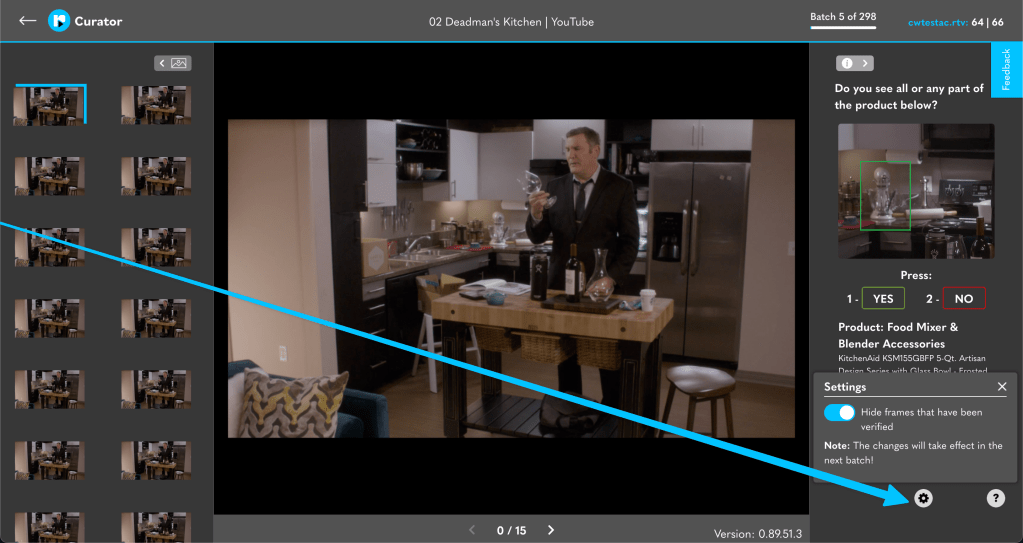
The next time you go to undo you’ll the frame will reappear with either a cross or tick icon attached to it. This represents what you previously assigned that frame too.
Tick = Yes
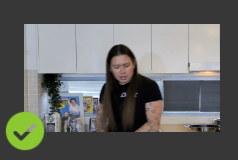
Cross = No

To change these answers simply use the 1 or 2 buttons to assign the correct answer. You will see the frames in the left begin to burn down like normal again until the final frame is assigned and the batch is ready to be committed.
 revealit TV Blog