
Using the Commit All Function
One of the most valuable tools in a curator’s arsenal is the commit all function. If you are supremely confident looking at a batch that the product your looking for appears in every frame you can choose to commit an entire batch to a singular answer all at once.
Finding your default commit all shortcuts
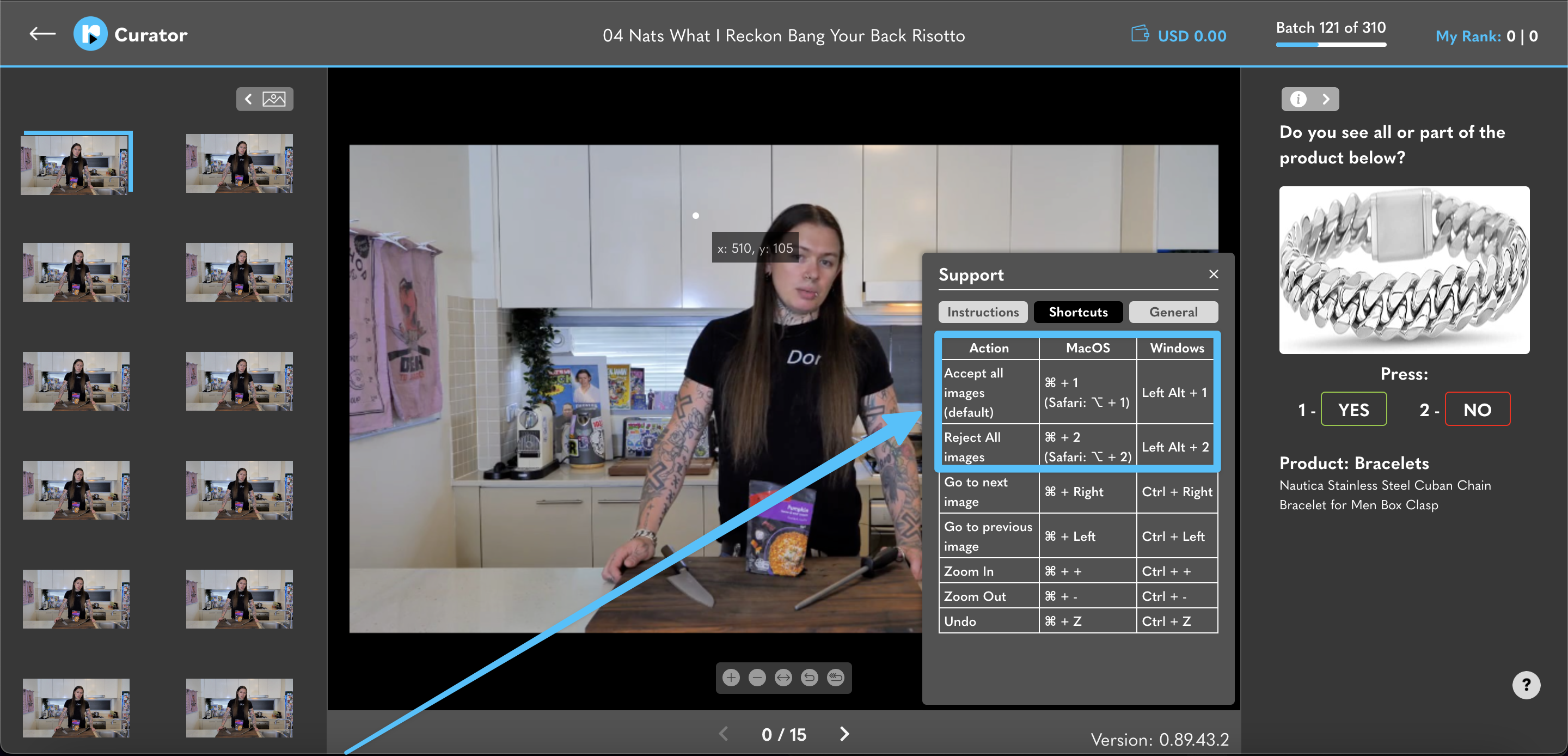
To commit an entire batch to either YES or NO using your keyboard you will first need to find out what the default shortcut is for your device. You can find this in two places. Firstly if you’re in the middle of a task you can click on the support menu button indicated by the question mark icon in the bottom right of the screen.
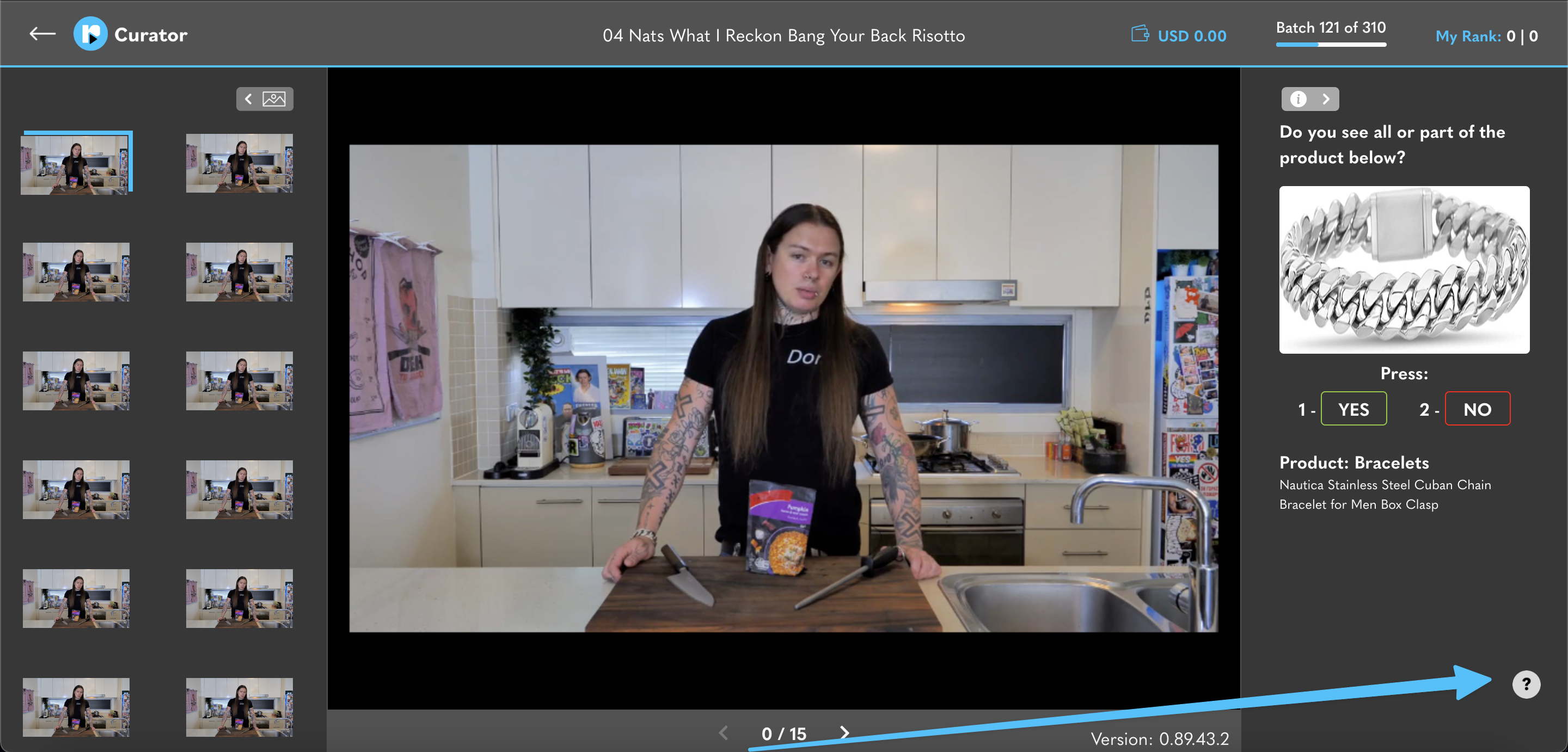
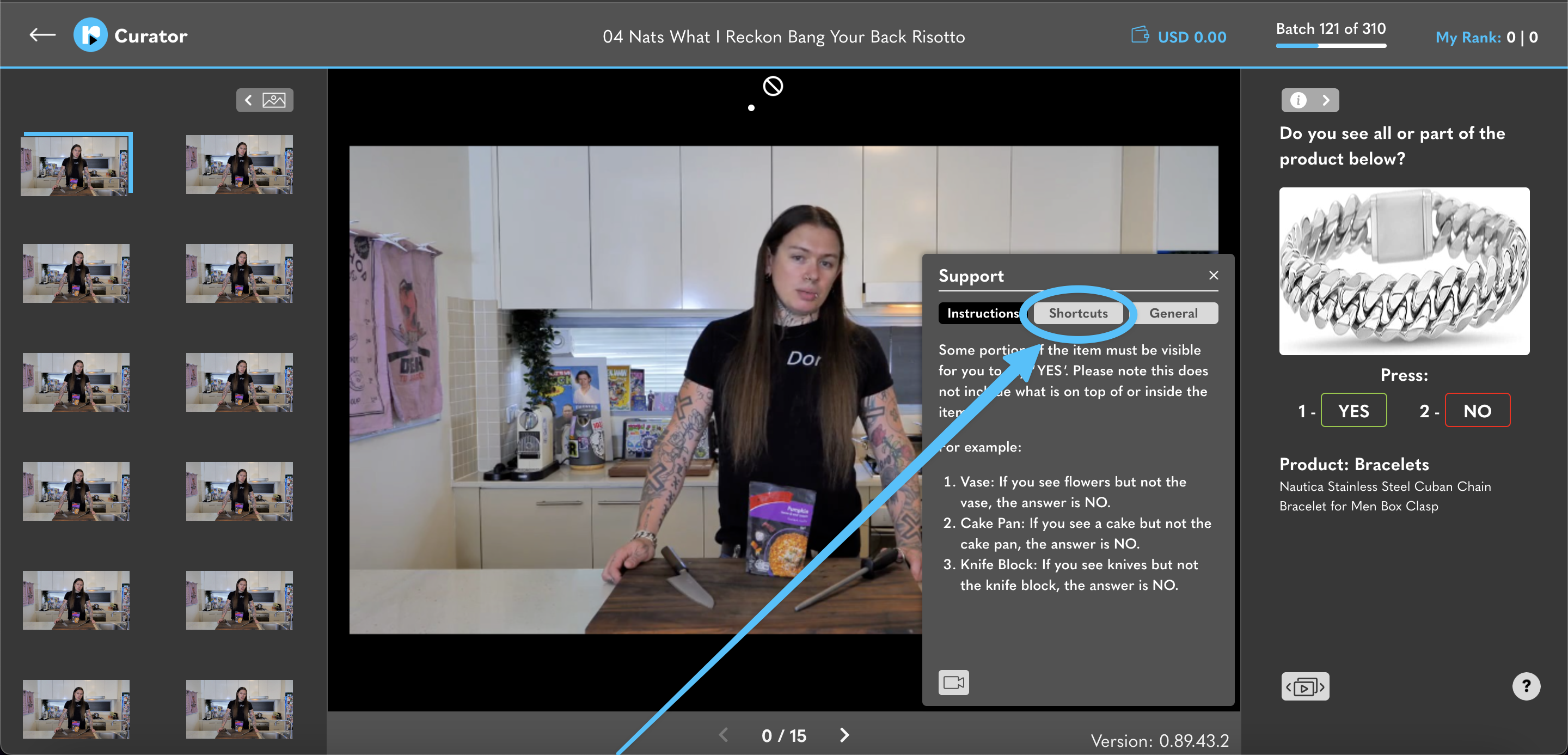
This will open up the support menu with some general guidelines on how to complete the task you’re currently working on. From here click the shortcuts button and your device’s default shortcuts will be displayed.
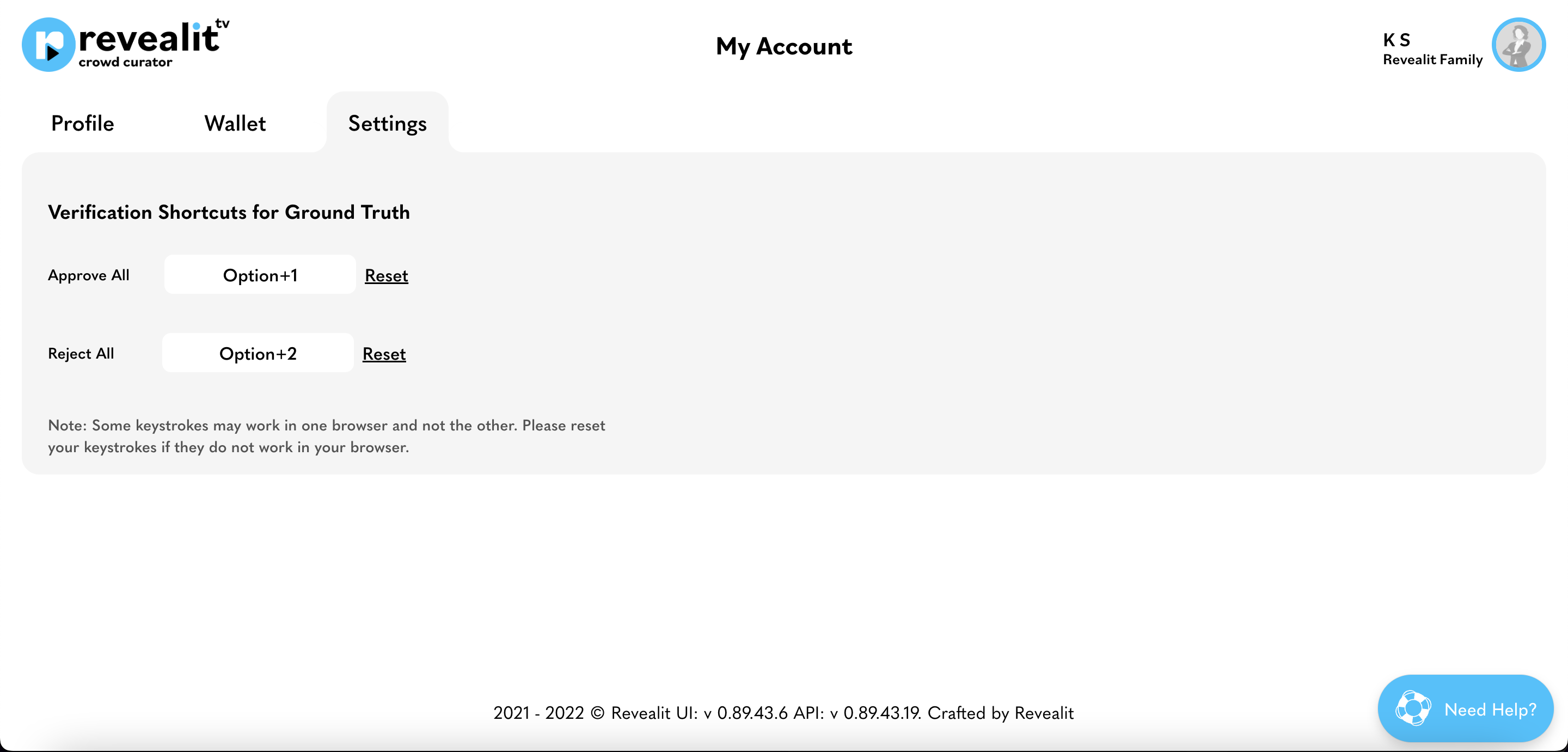
Alternatively, if your not in the middle of a task you can also find your default shortcuts located in the settings menu. On the home screen simply click on your username or profile picture in the top right, then click settings.

Here you can see the default shortcuts for your account are displayed. If you want to know how to customise your shortcuts read this article.
Example: Committing an Entire Batch to YES
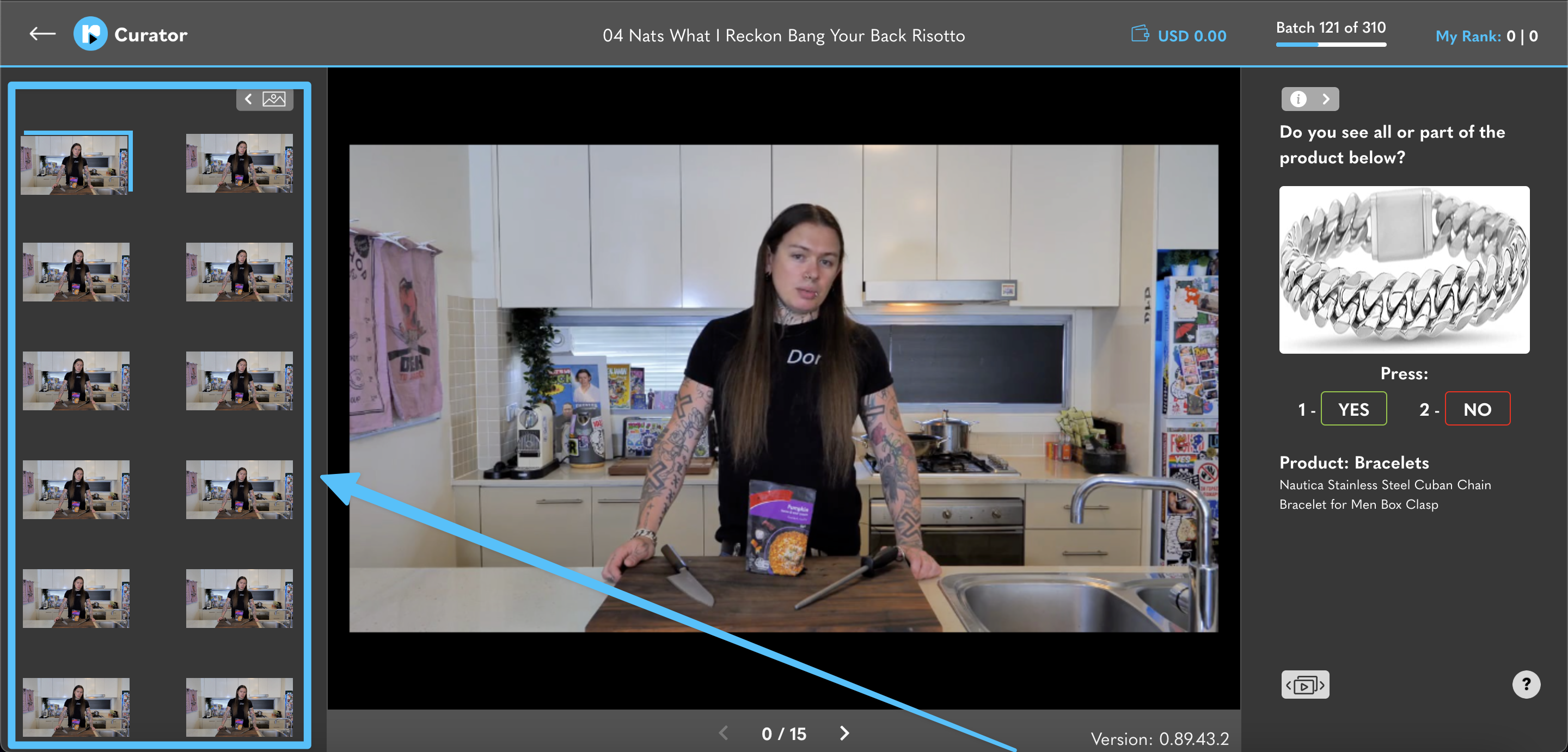
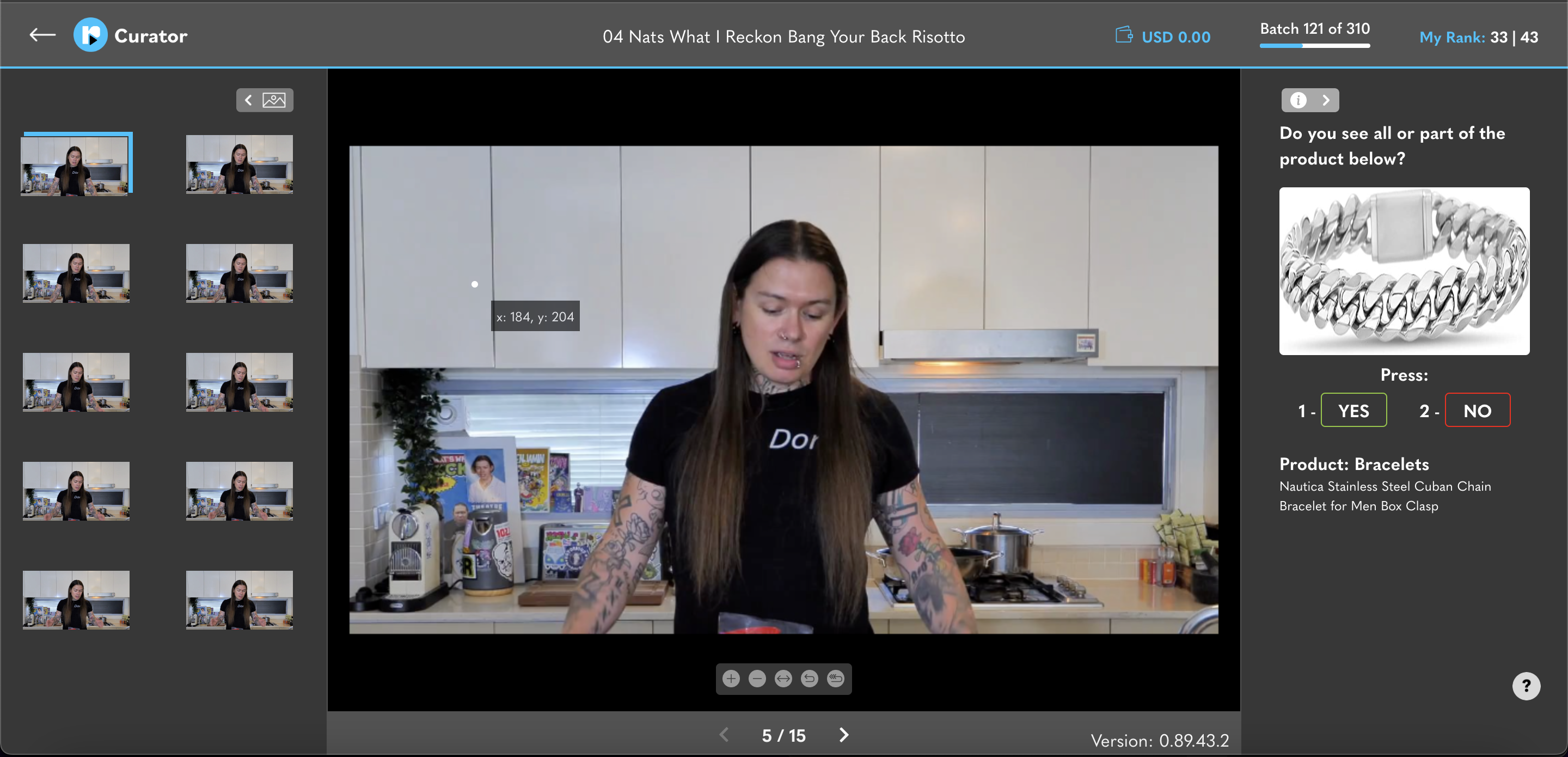
Let’s say for example you are working on the bracelet below.

You’ve been working on this video for a while now and you know that this particular bracelet doesn’t move from Nat’s wrist here.
You can also see in the left “batch” pane that the bracelet is present within every frame. In this case you’re confident you can commit the entire batch to YES. To do this press the appropriate shortcut for your device
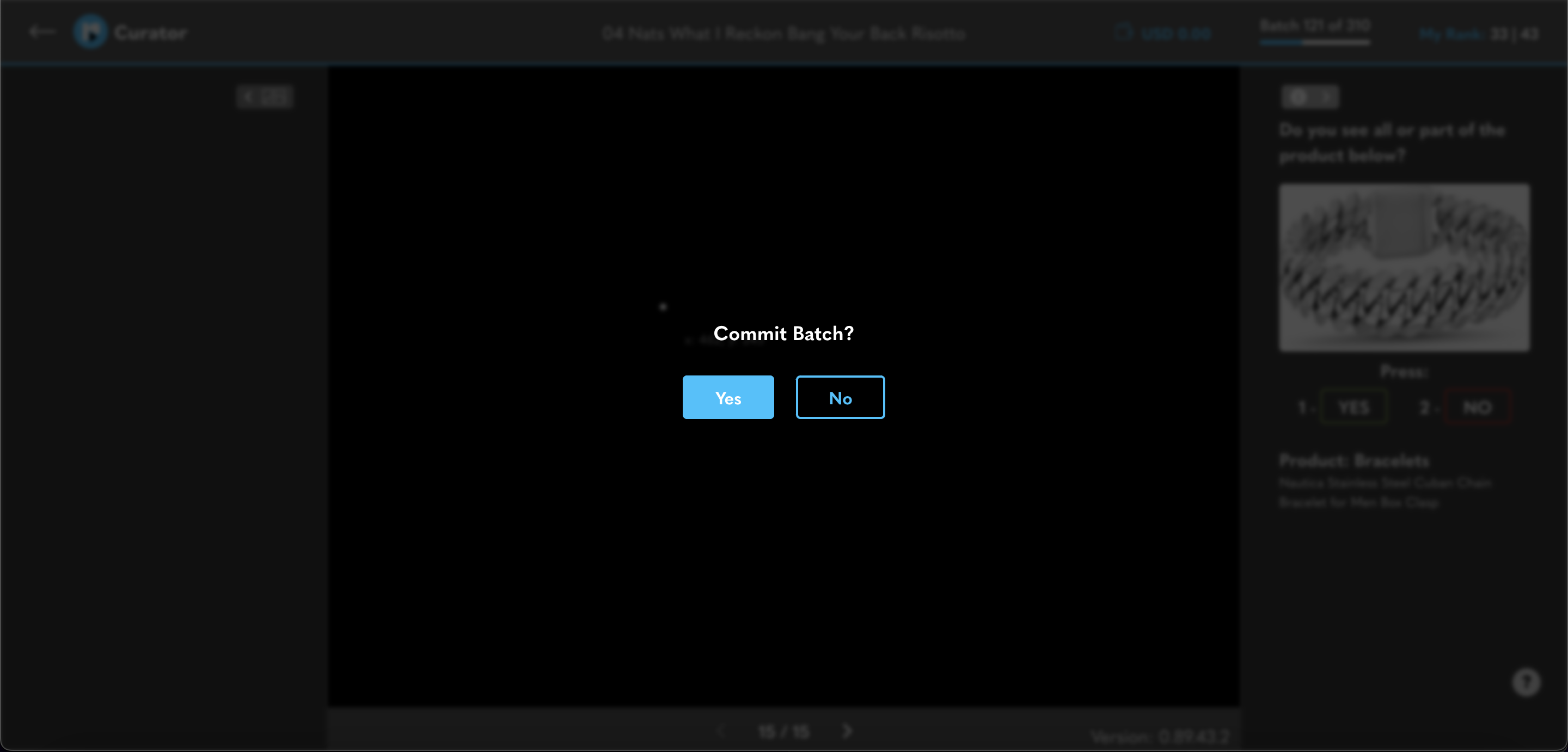
If there are no scene changes within the batch all frames will be assigned to YES and you will be prompted to commit the batch like so.
Using the Commit All Function with an End of Scene Marker
If your batch contains a scene change the commit all function behaves slightly differently. Batches with scene changes will be indicated by the end of scene marker below.
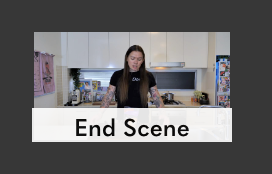
The end of scene marker acts as a sort of seatbelt for curators that want to go gung-ho with their commit all shortcuts. When you use a commit all shortcut in a batch with a scene change it will only assign an answer to all the frames up to the end of the scene. This is just to make sure that you are certain of the product’s location in scenes that a dramatically visually different.
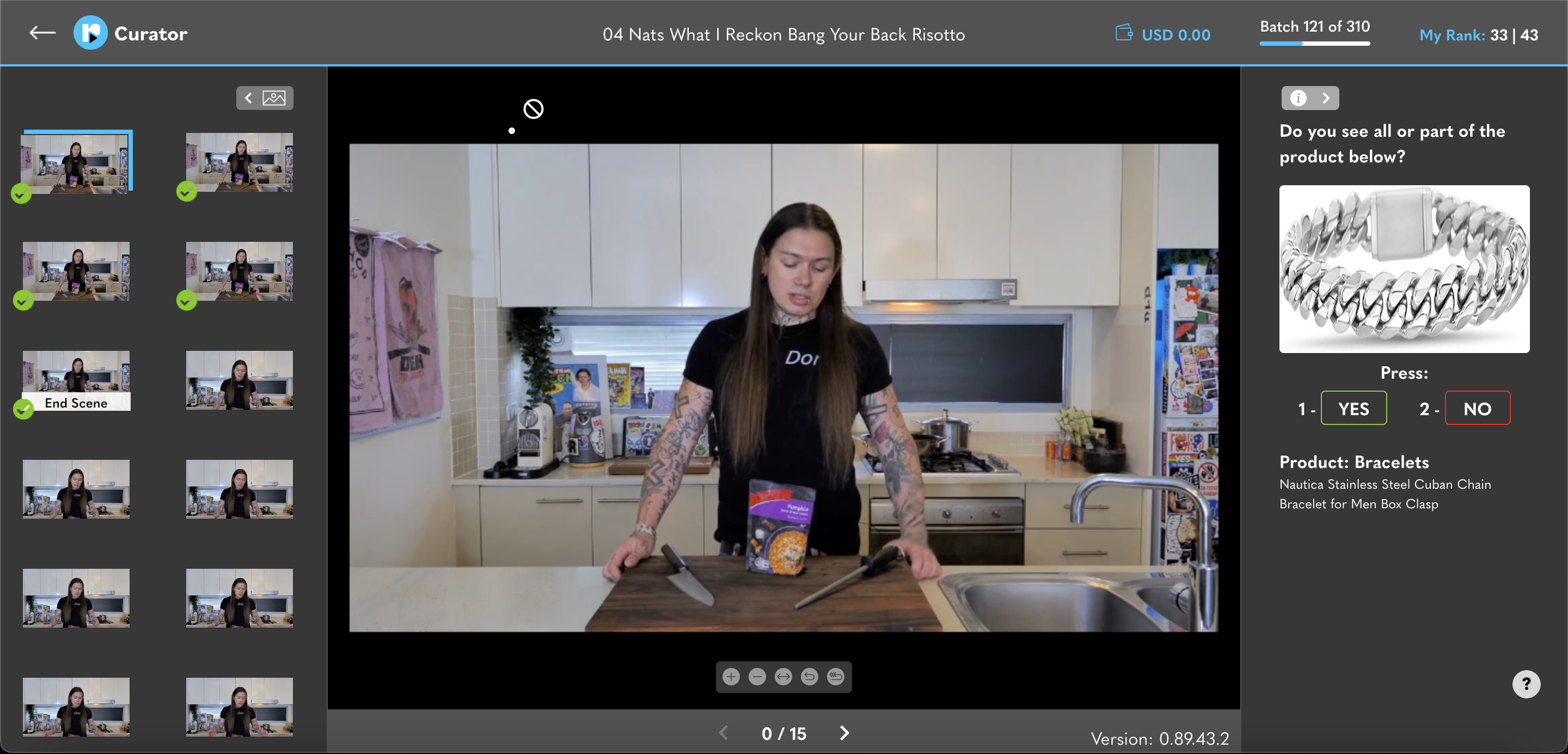
You can see here after pressing CMD + 1 on MAC to commit all the frames to YES an end of scene marker has stopped us at the first frame of the next scene. Looking closely you can see the bracelet is no longer present in the current frame or the remaining frames on the left hand side. From here I can commit the rest of the batch to NO using the appropriate shortcut CMD + 2.
The end of scene marker gives Curator’s the confidence to use commit all shortcuts more often and effectively. Allowing you to comb through massive amounts of like frames without making mistakes. It’s always worthwhile to double check and make sure you’ve entered the correct answer.
Committing an entire batch using your mouse
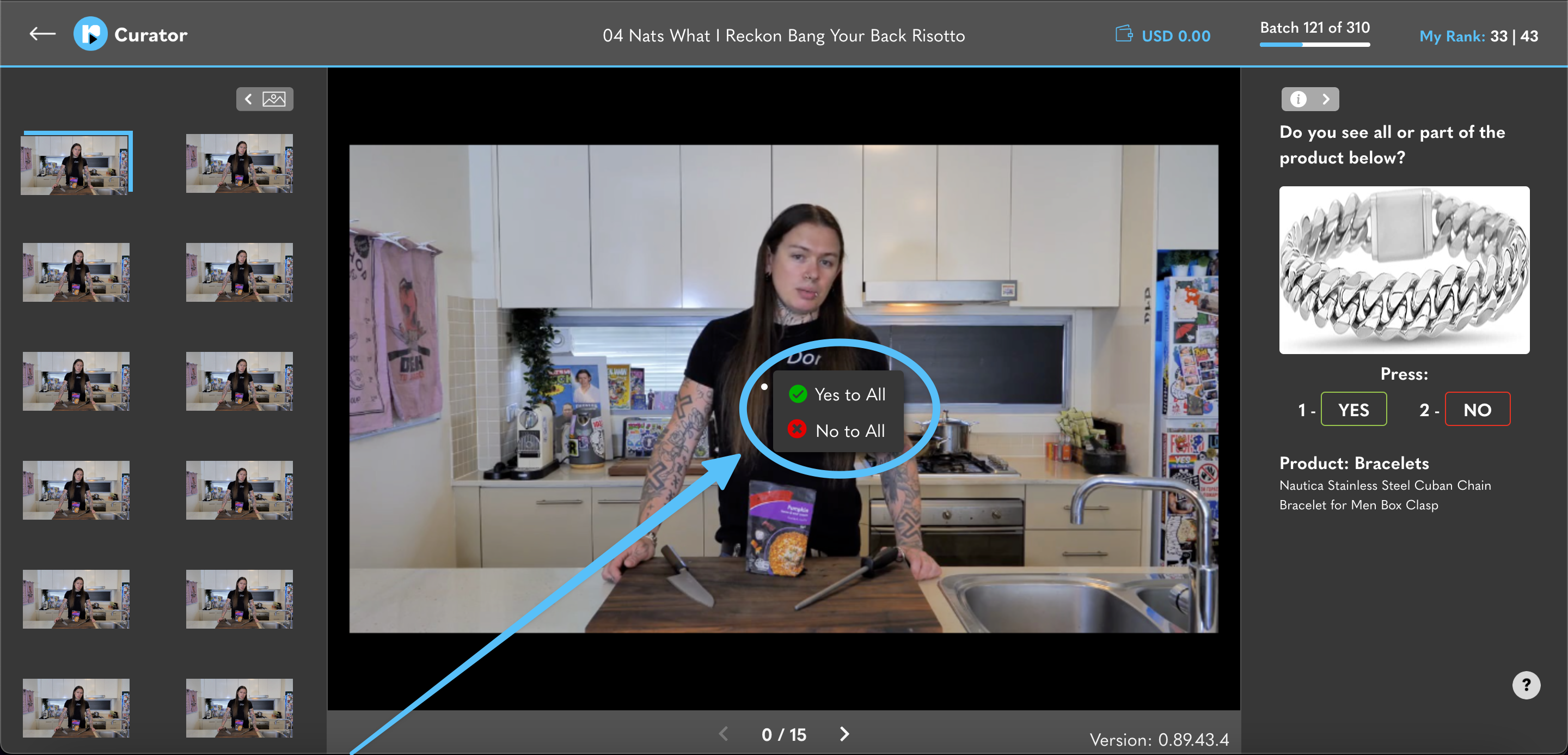
We know for some mouse oriented people that pressing multiple shortcut keys is unnatural and actually negatively impacts their productivity. For that reason we’ve included a way to commit an entire batch using just your mouse. Simply right click anywhere on the screen and you will be presented with two options YES to all or NO to all. Click on the appropriate option and all frames will be assigned that answer.
 revealit TV Blog