
Selecting the right keyboard shortcuts that suit your work style will mean you’ll never have to take your hands off the keyboard. Loosing precious time that you could be curating and earning more digital currency.
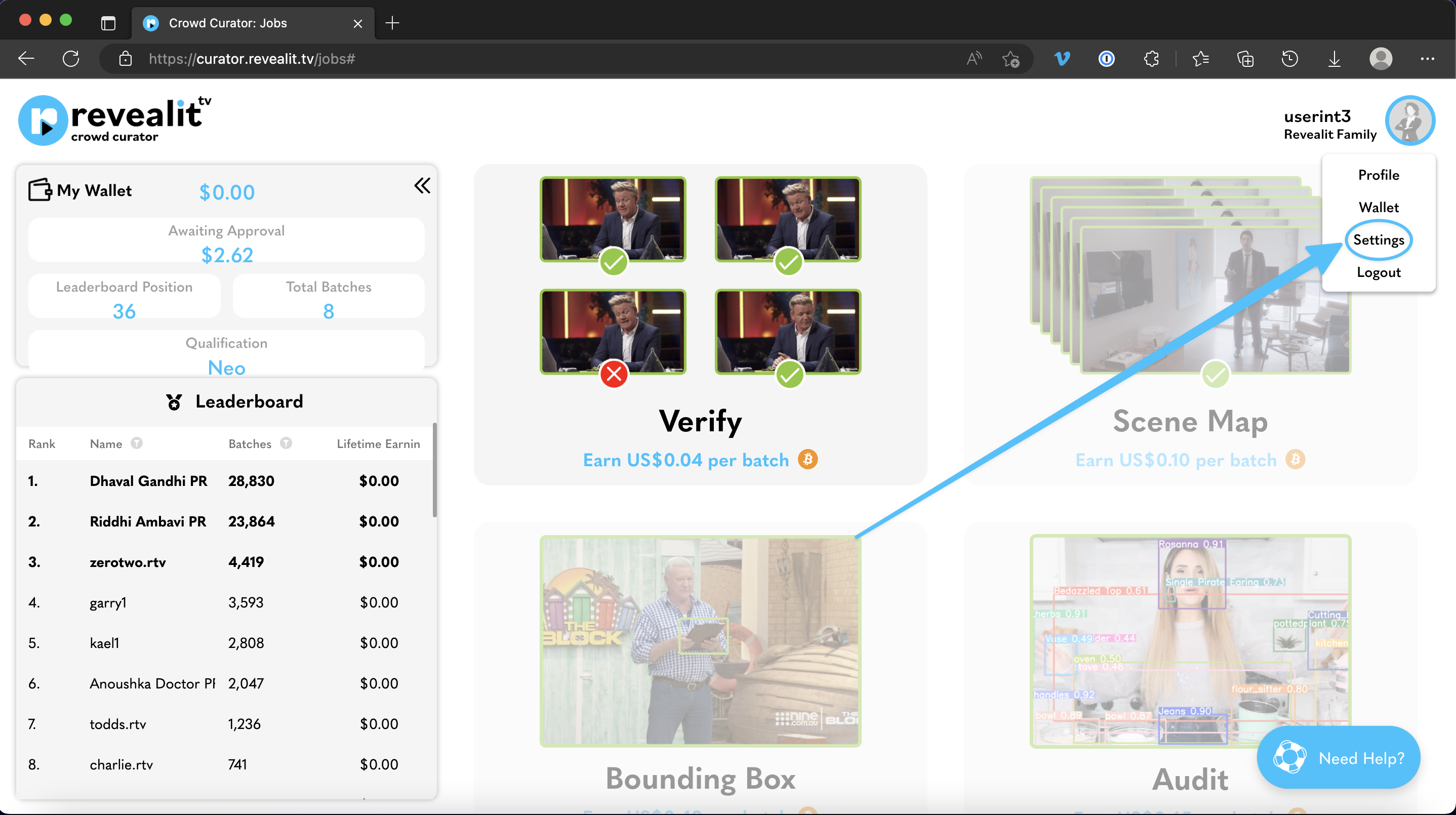
On the curator homepage, in the top right of the screen you will see a display icon with your name next to it. Clicking on your name will make the account drop down menu appear. From here, click on the settings sub-menu just below your digital wallet.
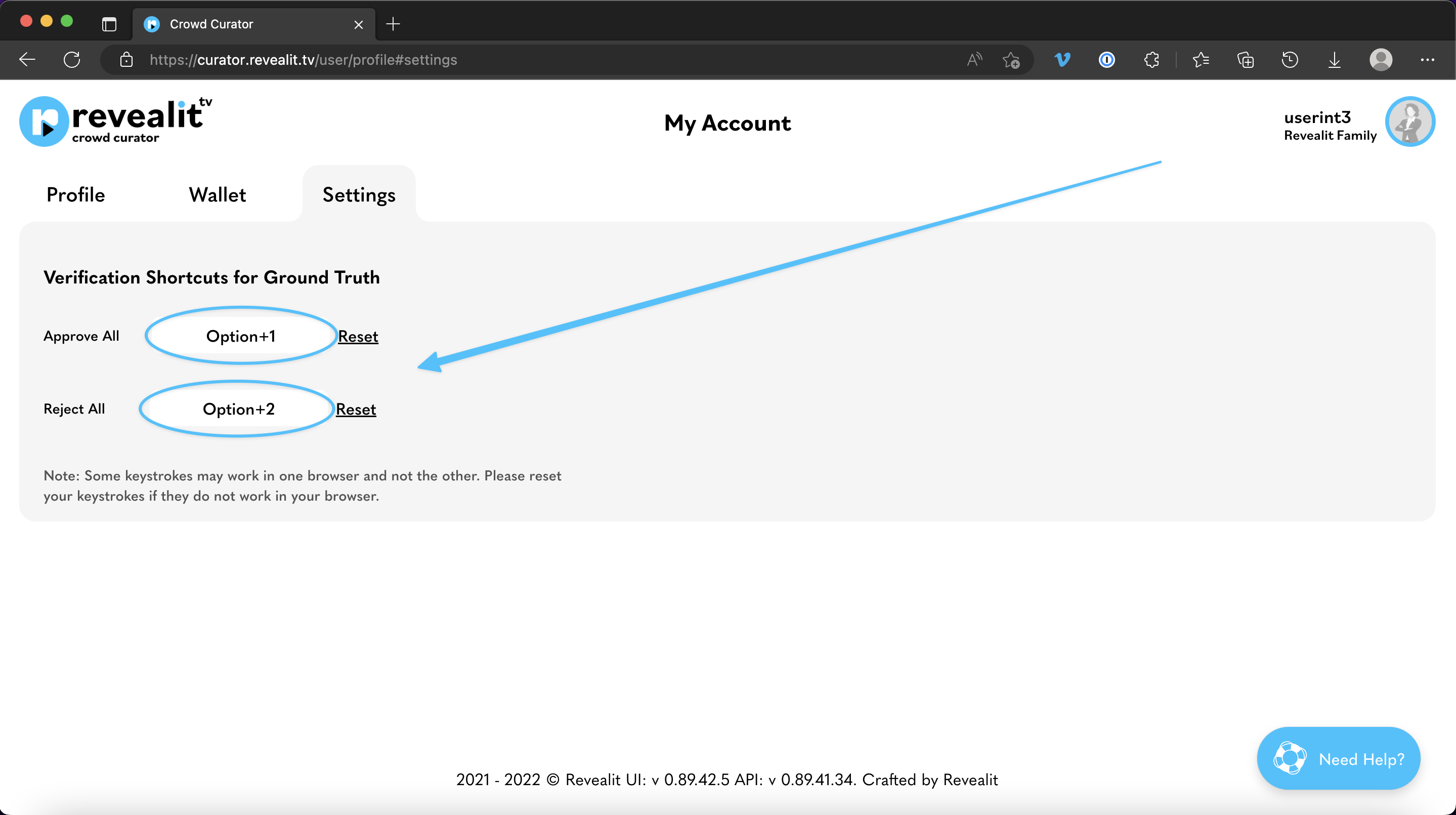
You’ll now see the main settings menu. Under the heading verification shortcuts you’ll see two actions you can assign shortcuts to; either approve all or reject all. To the right of this you’ll also see the key combinations that activate these shortcuts. With default being option + 1 for yes and option + 2 for no on Mac. Similarly on windows it’s alt + 1 for yes and alt + 2 for no.
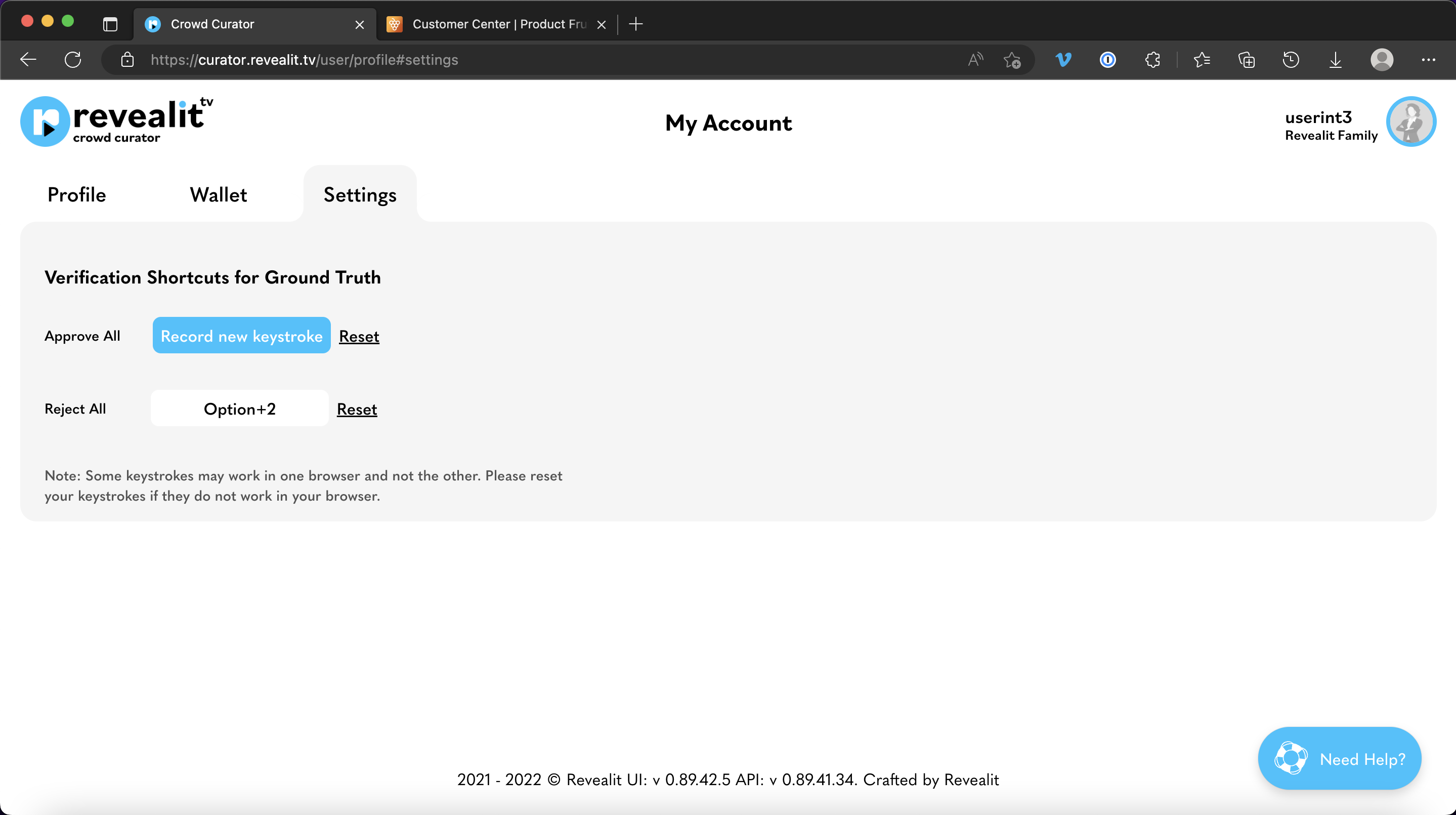
To change the keys necessary to trigger a shortcut. Simply hover your mouse over the key combination you want to customise and the box around it will be highlighted in blue to indicate Curator is ready to record your changes. To assign a new combination simply enter the keys you prefer and your changes will be saved.
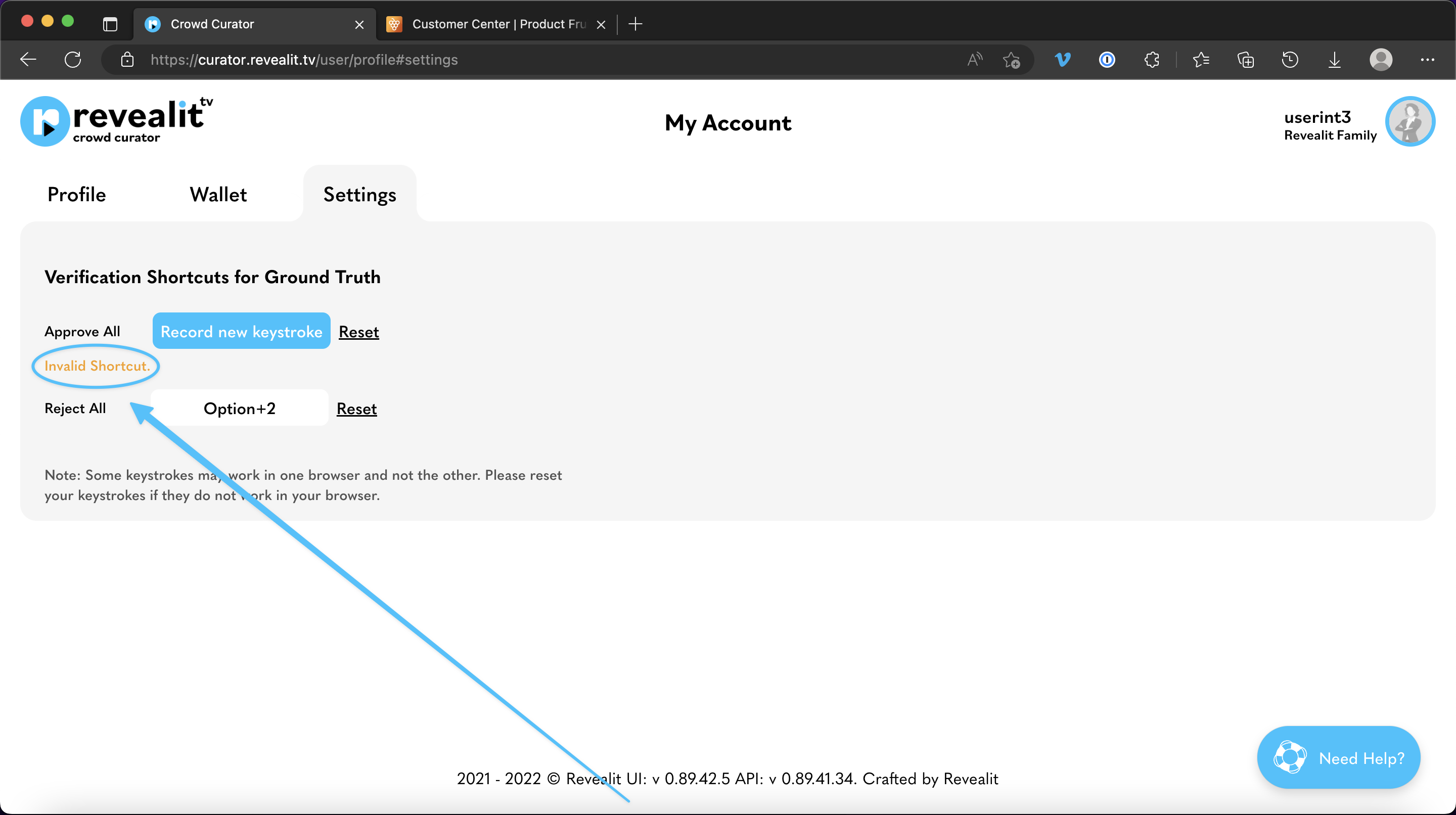
NOTE: (Combinations saved for system shortcuts will not be accepted and return an invalid shortcut response)
 revealit TV Blog